
Introduction
The Cloud Management Gateway (CMG) feature was first introduced in version 1610 as a pre-release feature. Last week Microsoft released 1802, and this feature is no longer a pre-release feature. We also now have the option to create the CMG using Azure Resource Manager (ARM).
In this blogpost I will share some learnings that I got from migrating the first customer from an existing (Classic) CMG deployment to the new modern (ARM) deployment.
Pre-Migration Tasks
There is really not that much that needs to be prepared, but you should spend the 15-20 minutes it takes to read the following documentation before you start:
- Plan for the cloud management gateway in Configuration Manager
https://docs.microsoft.com/en-us/sccm/core/clients/manage/cmg/plan-cloud-management-gateway - Security and privacy for the cloud management gateway
https://docs.microsoft.com/en-us/sccm/core/clients/manage/cmg/security-and-privacy-for-cloud-management-gateway - Certificates for the cloud management gateway
https://docs.microsoft.com/en-us/sccm/core/clients/manage/cmg/certificates-for-cloud-management-gateway - Set up cloud management gateway for Configuration Manager
https://docs.microsoft.com/en-us/sccm/core/clients/manage/cmg/setup-cloud-management-gateway
Certificates
Clients must trust the CMG server authentication certificate. There are two methods to accomplish this trust:
- Use a certificate from a public and globally trusted certificate provider.
- Use a certificate issued by an enterprise CA from your public key infrastructure (PKI).
Note: The CMG server authentication certificate now supports wildcards. Some organizations use wildcard certificates to simplify their PKI and reduce maintenance costs.
This specific customer has a PKI, so we will use a server authentication certificate issued from the internal enterprise PKI.
When requesting the custom web server certificate, provide an FQDN for the certificate’s common name. It’s important that the name that ends with cloudapp.net.
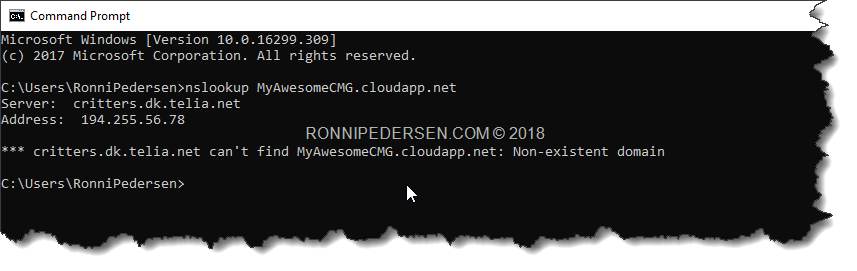
The name must be unique, and you can use nslookup to see if your preferred DNS name is available.
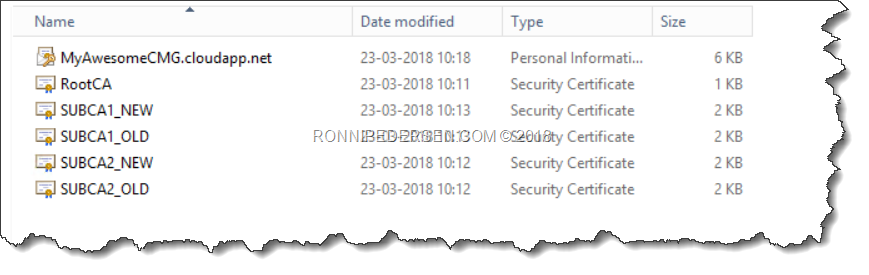
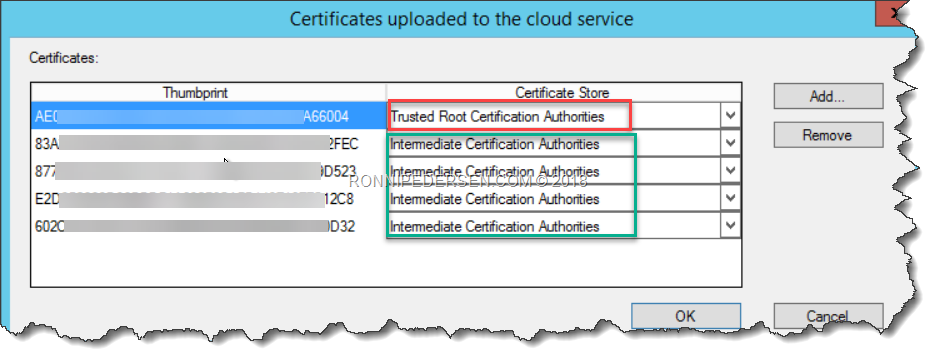
You also need an exported Root CA, and from all your Sub CA’s. Most customers have 2 Sub CA’s but In this scenario we have 4, as the customer is upgrading the PKI infrastructure.
Some clients are using the old, some are using the new, so we need all of them.
Configure Azure services
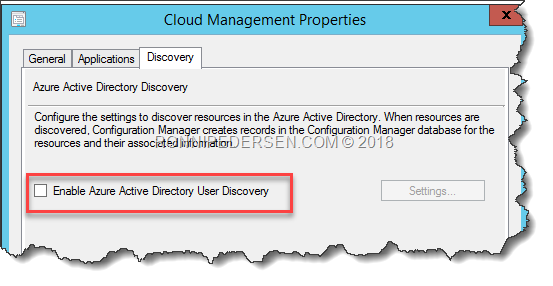
Integration with Azure AD is also required (Azure AD user discovery is not required).
To setup this service, you need to have Azure AD Admin Credentials.
Launch the console and navigate to Administration / Overview / Cloud Services / Azure Services.
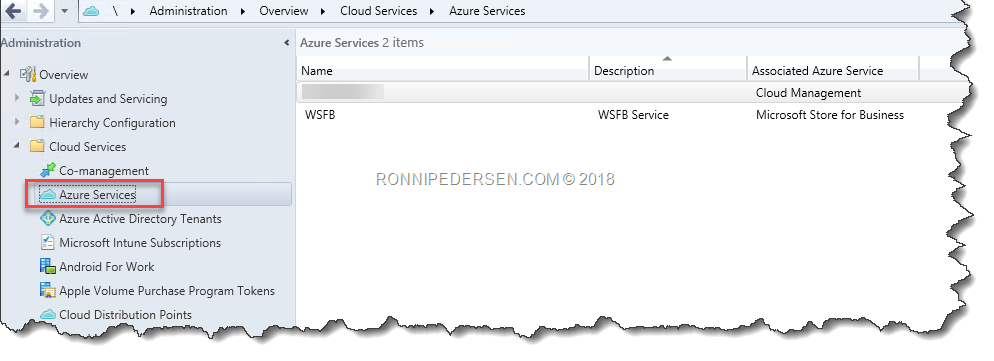
Add New, and select Cloud Management.

Create the two required Applications, by following the wizard. If you don’t have Azure AD admin rights, you can also get someone to create them directly in AAD. This also allows you to extend the lifetime of the secret key.
The name and the URL are not really important, but it might be a good ideas to discuss the naming standard with the Azure team, before you move on.
![SNAGHTML1a8d3786[4]](https://www.ronnipedersen.com/wp-content/uploads/2018/03/SNAGHTML1a8d37864.png "SNAGHTML1a8d3786[4]")
You don’t need to enable User Discovery.
That’s it… All pre-requirements are now completed.
Set up cloud management gateway
Running the CMG setup wizard is pretty easy, if all the pre-requirements are completed.
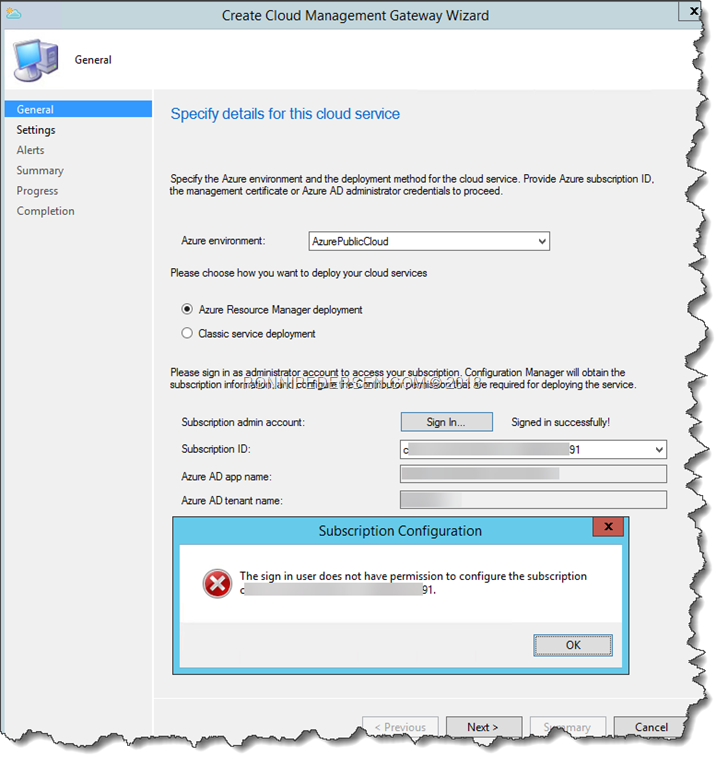
The only thing you need to verify, is that you needs to be Subscription owner in order to grant the Azure AD App contributor the subscription.
If you don’t have that permission, you will get the following error:
When you have the right permissions, the final part is pretty easy…
Click Browse, and add the Web server certificate.
Don’t forget to select the correct Region, before you click Next.
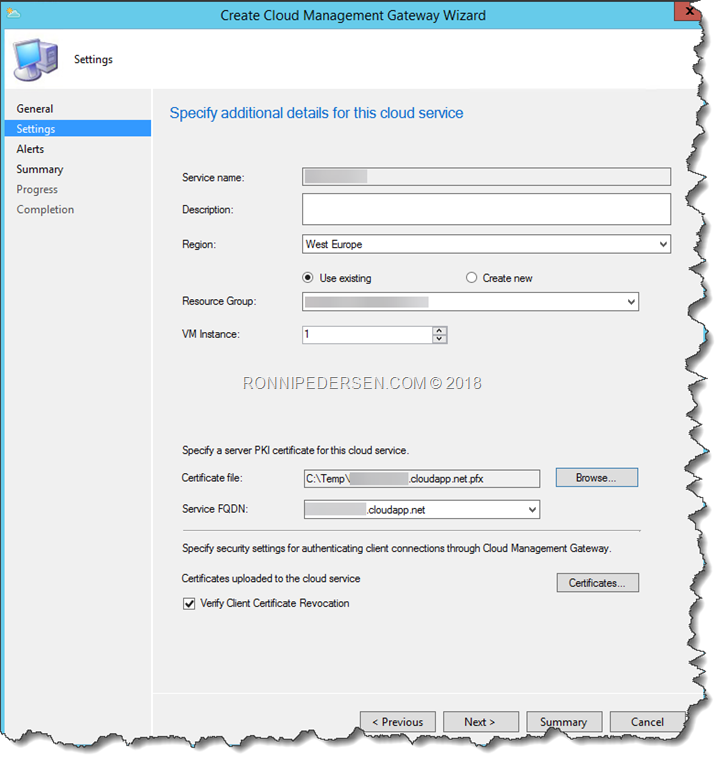
To add the Root CA and the Sub CA certificates, click Certificates, and select the correct Certificate Store.
Post-Configuration Tasks
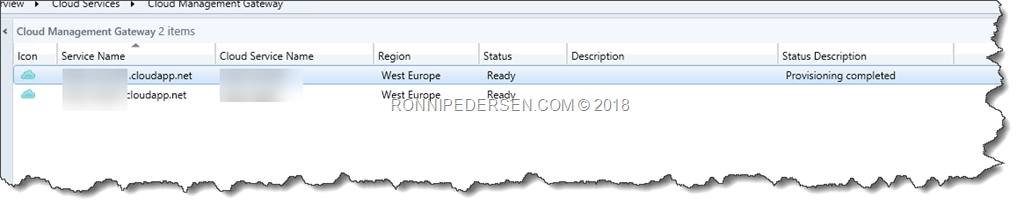
After installing the new CMG, you can see both of them in the console.
We don’t need the old one, so it’s safe to delete that now.
When I deleted the the old CMG, I was expecting to see clients starting to communicate with the new CMG, but that didn’t happen.
I when through the logs (CloudMgr.log and CMGSetup.log), but I didn’t see anything that could help me in the right direction (Maybe I was just blind).
It wasn’t until I rand the following SQL query, that I got hint. There was nothing there.
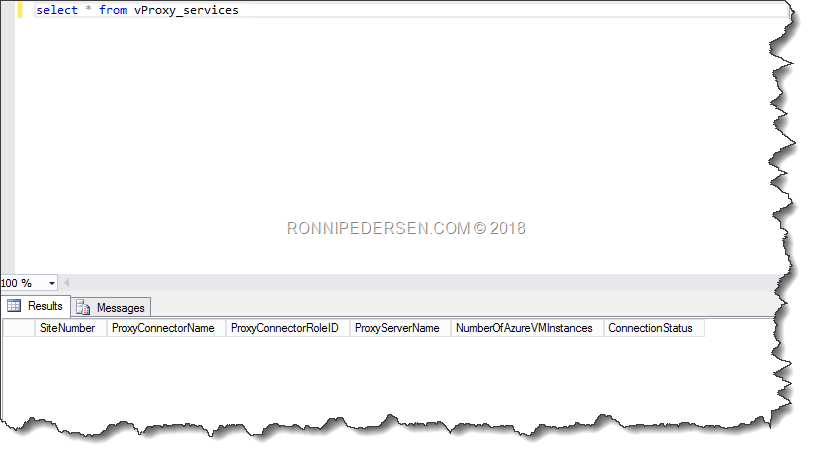
After checking the Site Role, I found the problem.
When you setup CMG for the first time, you add the CMG Role, and the CMG is specified.
But when you add a new CMG, and use a new name (Like I did in this case), you need to come back and update that setting to the new CMG.
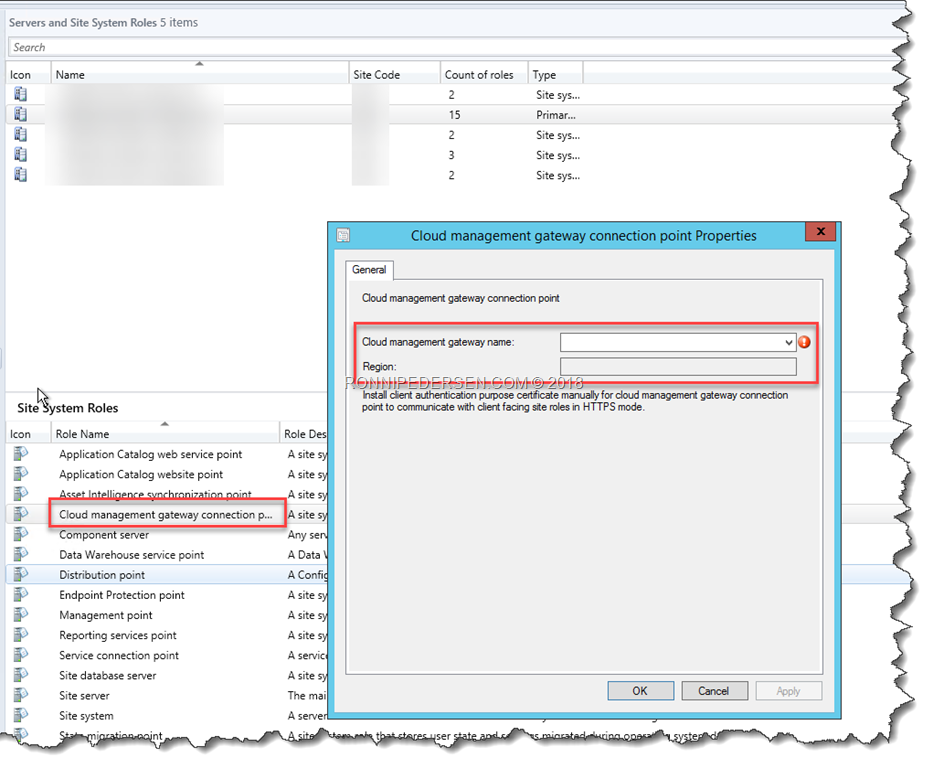
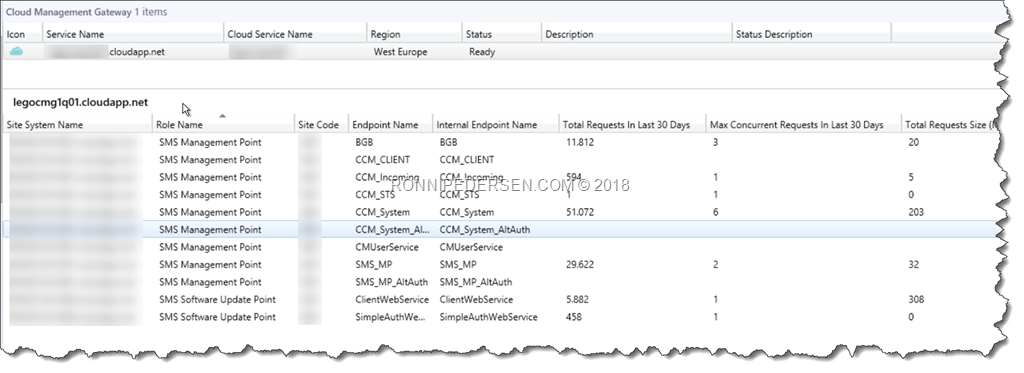
After that everything started to work as expected…
Conclusion
Migrating the CMG from Classic to ARM, is pretty easy, and is highly recommended.
Go migrate, enable co-management and “flip the switch” 
/Enjoy

2 Comments
Have you ever encountered the error “error ocurred granting contributor permission to azure app for resource group XXXX”? The account that Im using to try to create the Cloud Management gateway is a subscription owner, Im selecting all the appropriate certificates, and my SCCM applications are present in Azure and found by the wizard. I dont know what Im missing here but something must not be setup in my Azure subscription or something. I am attempting this process in ConfigMgr current branch 1902.
Do you know is it possible to move CMG between Azure Subscription within the same Azure AD tenant?