
OS Deployment and patch management has always been big challenge for many admins around the world. Not just the testing, but also to get the customer image patched made many ConfigMgr admins a lot older  .
.
One of the new features in ConfigMgr 2012 allows you to apply updates to an OS image that’s been imported to the ConfigMgr 2012 library. This feature only supports “Component Based Servicing” (CBS) updates, and can be applied to Windows Vista and above.
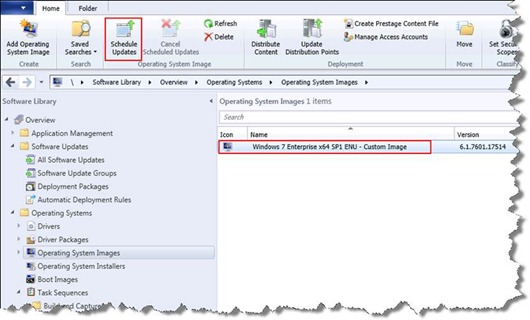
To use this feature, navigate to Software Library -> Overview -> Operating Systems – Operating System Images, select the Image that you wish to update, and click Schedule Updates from the ribbon.
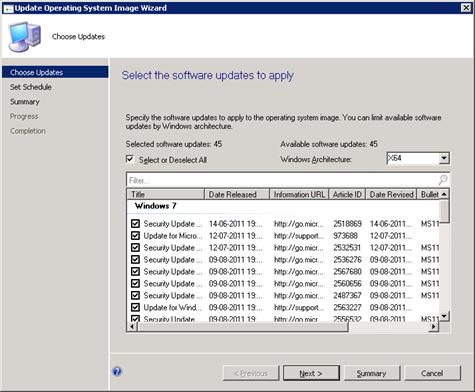
On the choose Updates page, you can select the updates that you wish to add to your image. The list only contains updates that meets the following criteria:
- CBS Updates
- The updates must be deployed in the ConfigMgr 2012 environment.
- The updates have not been applied to the image file.
- Click
Next
- .
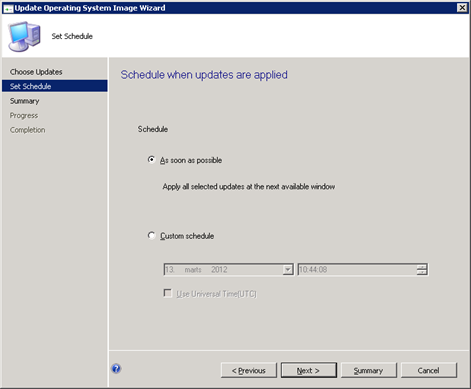
Select a time for the servicing to occur, and click Next.
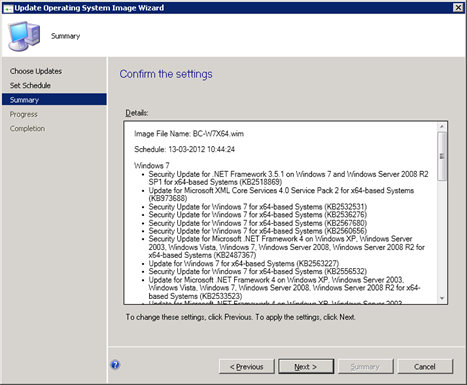
Review the summary page, and click Next. (and then Finish).
So… What happens under the hood ?
First the *.wim file and the selected updates are copied from the content library to a temp folder (D:\ConfigMgr_OfflineImageServicing). To speed up the build process, you might want to exclude this folder in your anti-malware scanner.
The wim files gets mounted in the temp folder, and the updates are applied (using DISM). If the *.wim contains more than one image, all images in the *.wim file will get the updates applied.
If the process complete successfully, the wim is restored to the package source. The original copy of the .wim file is saved as a backup copy (*.wim.bak).
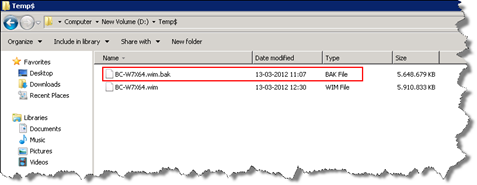
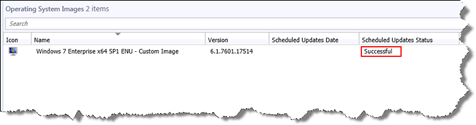
After the process is completed, the update status can be viewed from within the console.
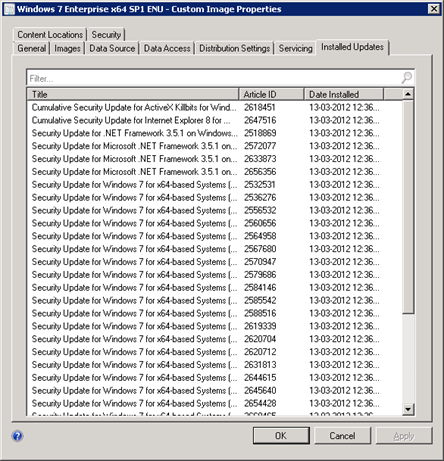
To view the updates that are applied to an image, select the image and click Properties (in the ribbon), and select the Installed Updates tab.
Only updates that’s installed through the Offline Service feature, will be displayed here.
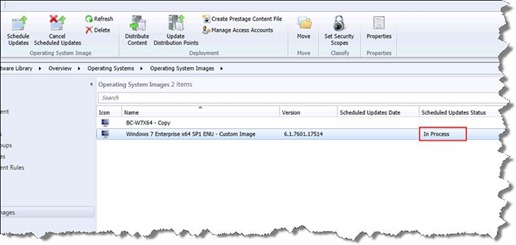
When everything is complete, and you’re happy with the result, you still need to perform an “Update Distribution Point” action on the image, in order to get the new updated image deployed to your clients.
Monitoring and Troubleshooting
You can monitor the update process a couple of different places.
In the console. Software Library -> Overview -> Operating Systems – Operating System Images.
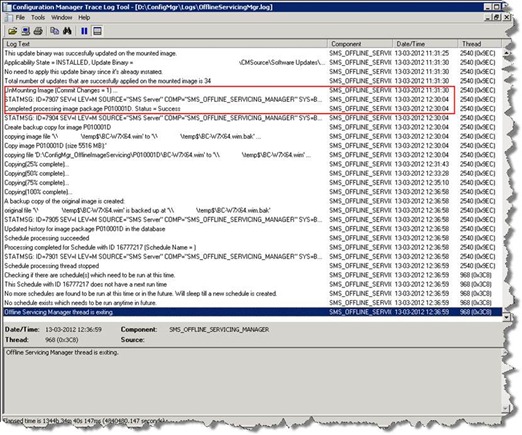
Most ConfigMgr admins love the log files , and this process has a log file too (OfflineServicingMgr.log).
This log file is very useful, and are also great for troubleshooting.
Notice that the commit changes process was almost an hour, so please be patient when you test this feature in your lab.
Happy patching

34 Comments
Pingback: Eswar Koneti's Blog » Blog Archive » SCCM 2012–Offline Patching for OS images
Great article, do you know if you can inject Service Pack updates via this method?
No. You use this method for service packs.
Today a service pack is very rare. Build a New image everytime a New SP is released.
Pingback: Building an image - "Windows is not genuine" - Page 2
Thank you, Great Article!!
Quick question,
Lets say my WIM file is 4GB and the updates added are 50MB.
when you “update” your distribution points. Does it copy the full WIM file again everywhere or just the part that have been changed ?
Thank you
That’s a very good question!
And the answer is even better… You’ll only need to send the 50 MB to all your DP’s… 🙂
Wow that’s awesome! 😀
Can’t wait to migrate to sccm2012
Thanks Ronni!
Pingback: ConfigMgr 2012 Offline Servicing of Captured WIM Images « Brady's Contentious Blog
Pingback: Offline Servicing: Failed to install update with error code 5 #sysctr | System Management
Ronni, is there any way to apply the non Component Based Servicing patches into the WIM file without having to rebuild the WIM every month or slowing down the deployment time by adding install updates in the task sequence
Not that I know of… But the process can be made very simple by using the MDT LiteTouch and then use the suspend feature just before you capture the media.
but then i would have to maintain a 2nd WSUS server for MDT to connect to right?
Can you update an whole image or just the OS? So let’s say you build a specific image for all sales laptops. This image will include programs that are specific tothat role, would we be able to update all programs and OS at the SCCM level or would we have to capture a new image?
thanks
Hi Luis,
Offline Patching does not support update of applications. Only CBS updates can be updated using this method.
So yes. In this case you would have to run a new build and capture.
Ronni,
Say there was a bad update – that didn’t manifest itself except in rare circumstances – and we wanted to remove it from image in SCCM. Is there a way to do this within SCCM or should we just do it via DISM? Thanks!
It’s been a while since I wrote this blog post, and when the feature came out I loved it…
However… I’ve stopped using this feature for many reasons.
1. It only support CBS updates.
2. From time to time I’ve seen that images are broken from this feature
So today I’d recommend that you use MDT lite touch to rebuild the image from scratch every time (use a dedicated WSUS server).
It’s simple and it always works 🙂
Hello,
I am trying to apply updates to one of my images and no matter how many updates I chose the update fails with an error: Failed to find required disk space for image servicing. I cannot figure out why. Any suggestions? Thank you for your time.
What OS version and SCCM version are you running?
Hi Ronni,
I followed the guide all went smoothly up to when it started to update, it comes up with “failed to mount the image on the system”.
running SCCM 2012 R2 deploying windows 7 ent
Thanks
Ronni, what happens to the install.wim.bak file after the offline servicing is done? Does it stay on the source location forever, or is it removed after a while, or is it replaced by the install.wim when offline servicing is performed again?
It will stay there! But every time you run the process it will overwrite the backup.
I know it’s been a while since this blog was written but I hope it’s still monitored because I have a question about this file. It appears as if this install.wim.bak file is included in the package and deployed to machines with the upgrade package. Is it possible to exclude it from the package? It essentially doubles the package size to about 8 GB!
Hi Brian,
I fully understand the problem, but don’t have a great solution to this problem.
A simple workaround would be move the *.bak to another folder, before updating the package.
This can be scripted/automated pretty easy.
Good thing is that when you move to Windows 10, you don’t need this feature anymore 🙂
/Ronni
I have updated WIM file with the patches. Status was Successful. After that I have deployed computer and add computer to our software update collection to get also other updates.
I have recognized in wuahandler.log that the same patches are missing that I have previously add offline to the WIM file.
For example KB3019215
Offline added to the WIM OfflineServicingMgr.log
$
Applicability State = APPLICABLE, Update Binary = E:ConfigMgr_OfflineImageServicingead0f6cb-fabe-4d89-8edc-4868abf58042windows6.1-kb3019215-x86.cab. $$
Applying update with ID 16931874 on image at index 1. $$
STATMSG: ID=7908 SEV=I LEV=M SOURCE=”SMS Server” COMP=”SMS_OFFLINE_SERVICING_MANAGER” SYS=SRV-NT9009.corp.krka.biz SITE=CP1 PID=24656 TID=16196 GMTDATE=tor sep 22 11:24:35.133 2015 ISTR0=”16931874″ ISTR1=”CP100137″ ISTR2=”1″ ISTR3=”” ISTR4=”” ISTR5=”” ISTR6=”” ISTR7=”” ISTR8=”” ISTR9=”” NUMATTRS=0 $$
This update binary was successfully updated on the mounted image. $$
Later on computer in Wuahandler.log
When i try to make a schedule for my windows 10 image, it only lists windows 8 updates? Do You know why?
regards
No. What version of SCCM are you using?
sccm 2012 r2 sp1
you have to add the new OS to the products to download patches for.
Administration > Site Configuration > Sites > [Select SCCM 2012 SUP site] > Configure Site Components > Software Update Point
That i have.
i roll out updates to windows 10 like i do to windows 7/8.1. It’s when i try to make an schedule on the image it self, it only lists windows 8 updates.
windows 7: https://www.dropbox.com/s/6c0rltby4la3wiq/windows7.png?dl=0
windows 10: https://www.dropbox.com/s/aqp9tg1h5eez4v3/windows10.png?dl=0
Hi I do not get any list of patches when i select schedule updates for windows 2012 R2. I have already done the synchronize software updates and have created software update groups for 2012 R2. Do i need to select the index of the OS that we wish to update?
Hello, Ronni
I’m having a problem at the moment of the updates of my Windows 10 image (1703), the whole process is occurring correctly (mounts the image and applies the 3 updates) however at the time of closing the image with the updates the following error occurs :
– UnMounting Image (Commit Changes = 1) …
– WIM :: UnMountWIMImage returned code 0x80070780
– UnMountImage returned code 0x80070780
– Image UnMount failed with error 1920
– Completed processing image package xxx002D5. Status = Failed
– Updated history for image package xxx002D5 in the database
– Schedule processing failed
What I understand is that he has the right to mount and apply the updates but when closing the image is not allowed. Have you seen anything like it?
Hi,
After the new Windows 10 Update model, I dont see the value with offline servicing so I’ve stopped using it. So I haven’t seen the issue you describe.
Ok, Thank you.
Hello Ronni,
great post, I see the log file and wim is being copied to D:\ConfigMgr_OfflineImageServicing folder but on primary site i dont see that.
Any suggestions?
Thanks