
Before you start adding drivers to Configuration Manager, you should spend a few minutes to decide where and how you wish to structure your drivers. There is no “one-size fits all”, but this model should fit most customers.
The Driver Source
The driver source, is the path where the drivers are imported from. The source files should always be placed on at network share, that can be accessed from the Configuration Manager Site Server. I always prefer to use DFS, as it provide me the flexibility I need when migrating ConfigMgr or the file servers hosting the source files.
This is how I like to store my source files for my drivers:
domain.localCMSource$Driver Source%vendor%%model%%osversion%%architecture%
Example:
domain.localCMSource$Driver SourceLenovoLenovo ThinkPad T20Win7x64
Driver Package Source
The driver package source, is a source folder like for any other package in ConfigMgr.
domain.localCMSource$Driver Packages%vendor%%model%%osversion%%architecture%
Example:
domain.localCMSource$Driver PackagesLenovoLenovo ThinkPad T20Win7x64
Importing the drivers
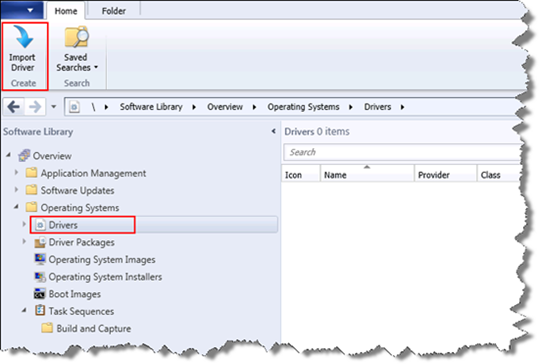
Navigate to Software Library -> Overview -> Operating Systems -> Drivers. Select Drivers, and click Import Driver in the ribbon.
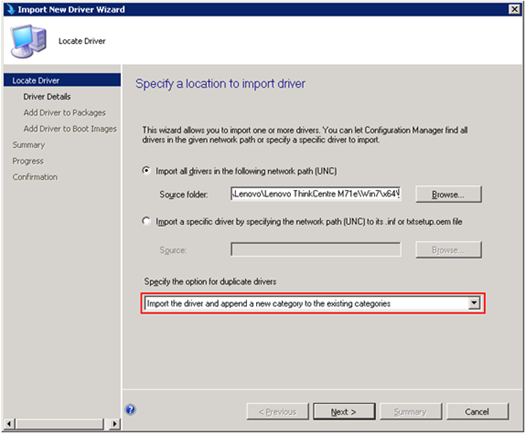
On the Locate Driver page, specify the source folder by using a network path (UNC).
Lots of vendors and hardware models, are using the same drivers, so it’s important, that you select “Import the driver and append a new category to the existing categories” (selected by default). Otherwise you might break the driver installation for other models.
Click Next.
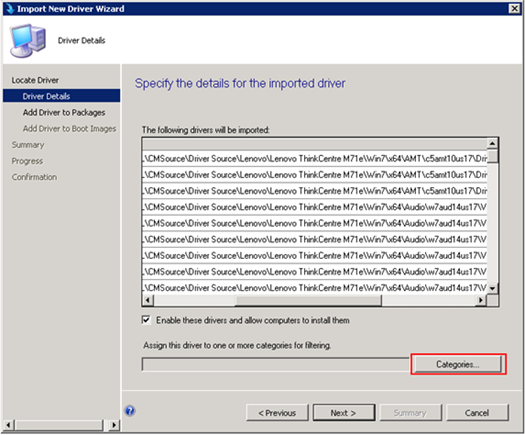
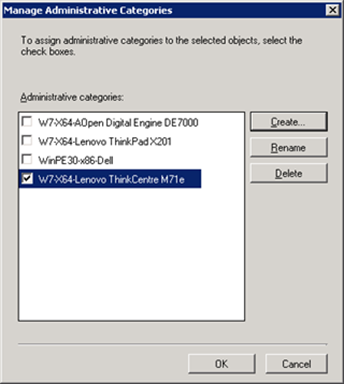
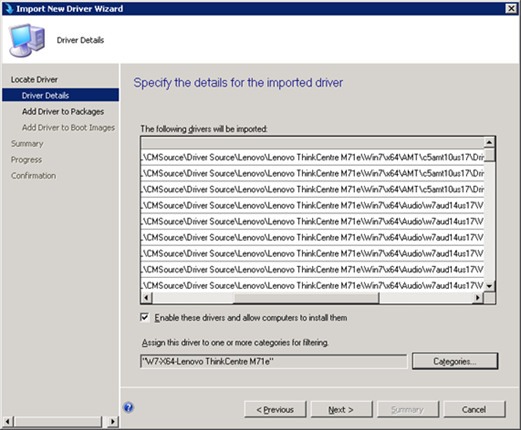
On the Driver Details page, click Categories.
Click Create…, to create a new category for the new model.

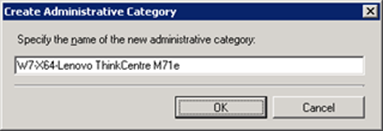
Specify the name of the new category. Use something unique, so it’s easy to identify.
Click OK.
Click OK.
Click Next.
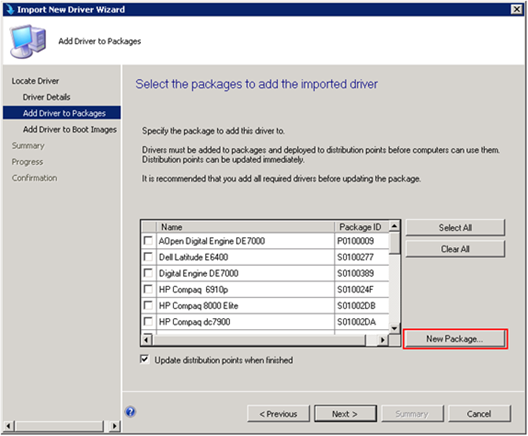
On the Add Driver to Packages page, click New Package…
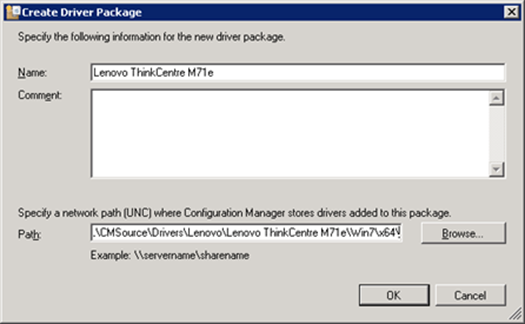
Specify the name of the Package (Model name), and specify the path to the driver package path. Important: The Driver Package Path, and the Driver Source, can’t be the same target.
Click OK.
Click Next.
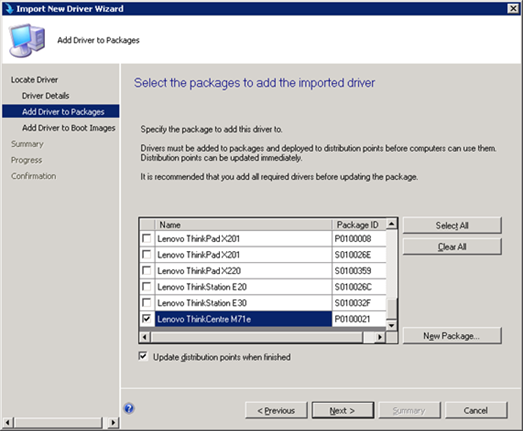
Click Next.
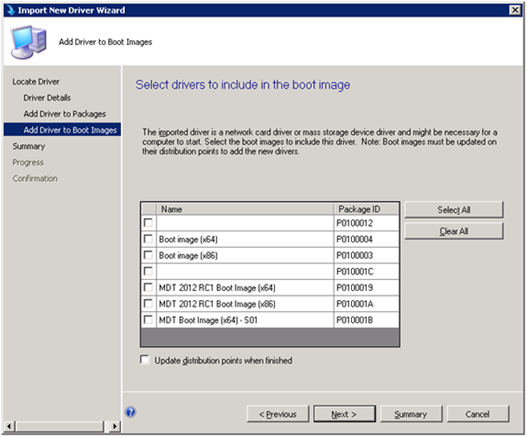
Click Next.
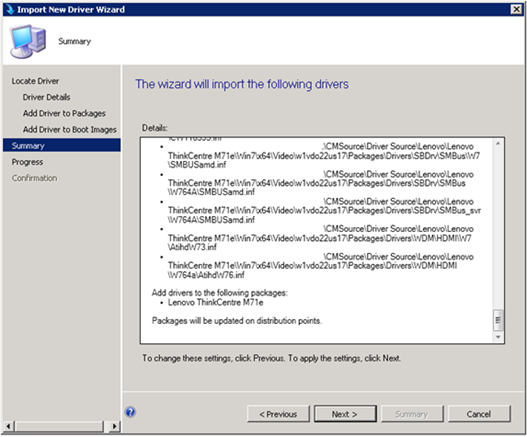
Wait for the drivers to get imported (This might take a while), but sooner or later it should complete 
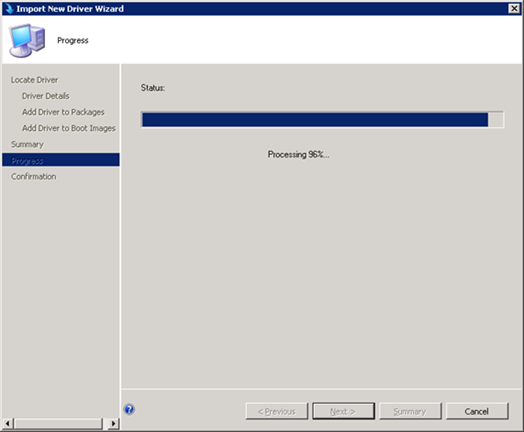
When the import is completed, click Close.
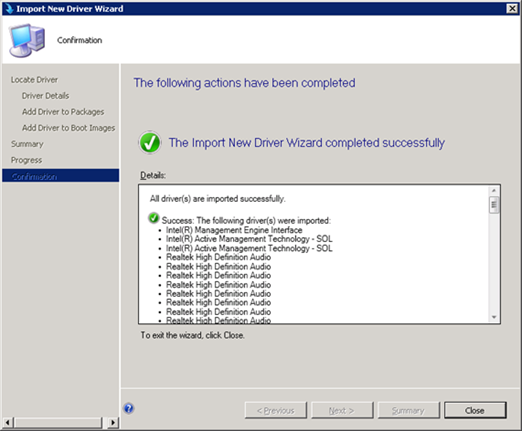
Distributing the driver package
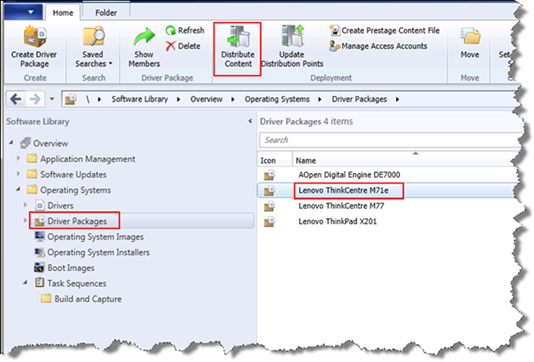
To distribute the driver package to a distribution point (or distribution point group), navigate to Software Library -> Overview -> Operating Systems -> Driver Packages. Select the drive package, and click Distribute Content in the ribbon.
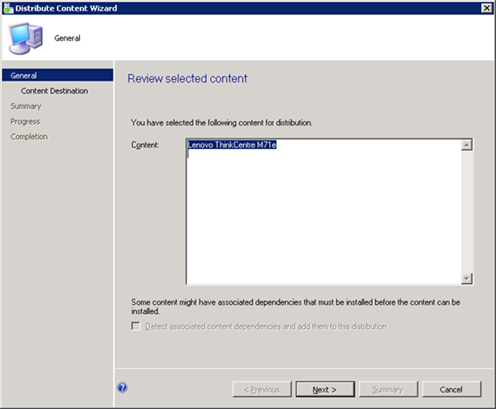
Click Next.
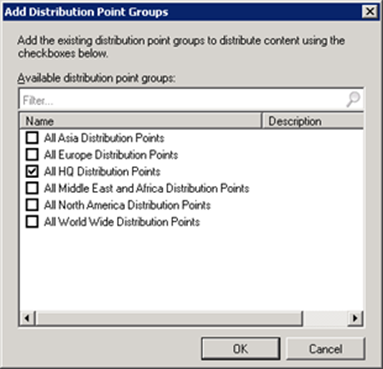
Click Add, and select Distribution Point Group.
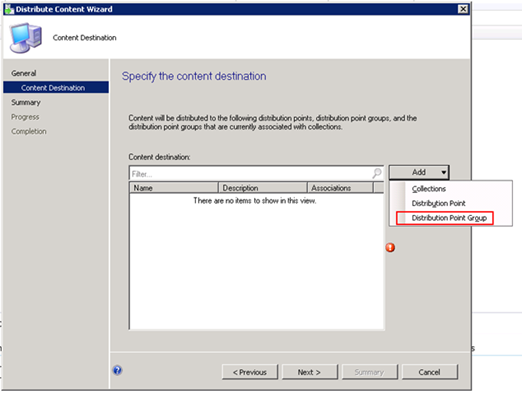
Select the Distribution Point Group(s), and click OK.
Click Next.
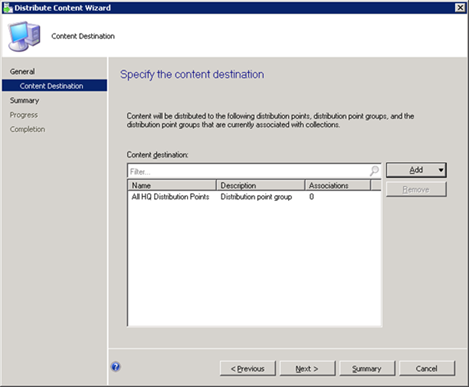
Click Next.
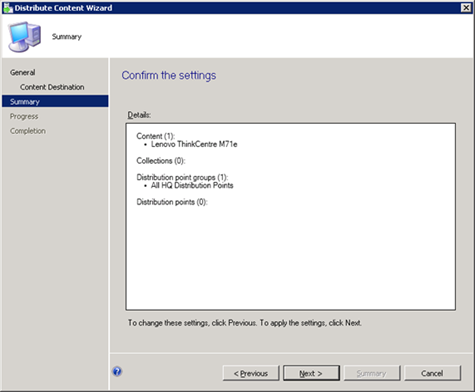
Click Close.
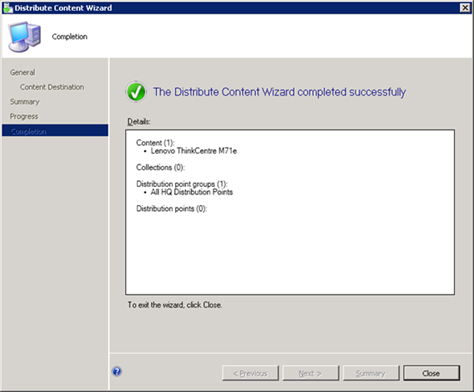
The Driver Package is now imported, and ready for use in a Task Sequence.
Enjoy.

15 Comments
Hej Ronni og tak for den fine guide.
Jeg er kun lige ved at lære SCCM 2012, og har et spørgsmål
Lad os antage jeg har 5 forskellige typer hardware med 5 forskellige lydkorts drivere..
Er jeg tvunget ud i at lave 5 forskellige task sequences så?
for umiddelbart i din guide ligner det man bare tilføjer den.
Kan man ikke få den til at automatisk vælge mellem et sæt af drivers ?
mvh. Allan
Hi Ronnie,
We use the same method for importing drivers as you describe in this post. However, I wonder why you don’t distinguish the architecture in the Driver Package. It seems you import all the drivers for one model into the same package and disregards the architecture, even though you separate them on the category level – how come? I’m experiencing the 0mb issue with ConfigMgr 2012 SP1 CU1 and your post caught my attention in the search for a solution.
Thank you for posting.
I allways create a package for both the 32-bit and the 64-bit drivers.
Thats also what I recommend in this post 🙂
Pingback: How do you put laptop drivers into sccm 2012
Hi Ronnie,
i found out a way to use the “old” driver management in SCCM 2012.
So it is possible to Apply Drivers without importing them into the database.
You can read my post here:
BR
Achim
http://www.windows-noob.com/forums/index.php?/topic/10856-sccm-2012-osd-apply-driver-packages-without-importing-them-to-the-database/
Hi Ronnie,
by searching arround in the web I find your very good post.
I wonder that nobody post a good practice to keep the driver source share clean.
SCCM 2012 imports only the same drive once. (Yeah, I know the hack to duplicate Drivers)
My Problem with the driver source share is, that you can only import the same driver once for diffrent models.
So if you import a driver that is used by Lenovo and Dell and you import the driver first for the Lenovo, you have the source path from the Lenovo in the Dell Drivers source path. If the Lenovo model becomes retired you will have to clean your source share.
But you can’t, beacause the driver source share from the Lenovo is used by Dell.
How do you handle this?
BR
Chris
I don’t do any house cleaning… I just leave it growing…
Hi Chris,
have a look at my post.
This is an option when you want to have everything clean and separate every model.
BR
Achim
Hi Achim,
Thanks for the reply. That’s not what I am looking for.
I want to use the SCCM Driver-Store, but I want also a clean Driver source share.
I come to the realization that this is not possible with the SCCM Driver store. (Only by cheating, with a txt-file)
Once you Import a Driver you can only clean the Driver source share, if a Driver do not have any Referenz on any model.
I also wonder that all the SCCM-Freaks do not care about a clean Driver source share.
For some Admins in my Project it is not easy to understand the fact, that a Driver which is used by a Lenovo and a Dell Model only have one Datasourceshare. And that is confuses that hardwareintegration Team.
BR
Chris
Hi Chris,
I also want this – a clean driver source share.
In ConfigMgr07 I used the “Apply Driver Package” method without importing the drivers into the database.
But unfortunately normally this is not possible in CM12.
What is the reason that you want to use the SCCM Driver-Store?
Where do you see the advantage?
BR
Achim
Hi Achim,
that’s complcated to describe.
I am the Lead worker on one of the biggest SCCM 2012 Migration Project in Europe and the dynamic TS that we created must use the Driver store for some reasons. In a Company with less Clients and less Primary site Servers your Driver model will work fine but not in this envoironment.
(hint: the 4 Rings from Germany. Nearly 100T Clients in 2 Infrastuctures, with 2 CAS and on each CAS you have 5-7 PS and a lot of DPs and MPs)
As replyed from Ronni, I think I must leave the DriverSourceShare growing.
If you interestet on Details you can PM me on my blog.
BR
Chris
Hello Mr. Ronni Pederson,
Could you please explain what is the difference between Drivers and Driver Packages.
We are importing drivers from a unc folder path under Drivers node, But Why again we need to create Driver Package?
Thank You
Mohamed Saleem
tosaleem@gmail.com
Driver Packages are (just like a standard package) something you can distribute to your Distribution Points, so the clients can get the files when they need them.
So drivers a are the information from the inf files. Packages are the files…
Ronnie,
During one of the driver imports that I did I inadvertently added those drivers to the both the x86 and x64 Boot Image. I was able to narrow down to a particular system and was able to validate that these are in fact the drivers that are now causing the image to fail. I was able to narrow it down to the drivers for a HP EliteBook Revolve 810 G3. I have screen captured the different NIC drivers that are associated to the image and would like to just remove what I put in there. My question is, when I go into the properties of the Boot Image and remove these 810 G3 drivers, will it proceed through the following screens and then update the image similar to how the driver packages are created? Just want to get an opinion from someone who has the knowledge that I didn’t when I created the mess adding those drivers to the boot image. Any assistance would be greatly appreciated.
Mark Reny